Peds Mega Code is a pediatric scenario simulator for a classroom. The instructor runs the patient from a console, and the students work from a bedside monitor that shows only what they ask for. This page explains how to set it up and run it.
One computerA laptop or desktop with a current browser such as Chrome or Edge. The instructor console needs a full-size screen; it is too wide for a phone.
A second displayA TV, monitor or projector for the students, with an HDMI cable to reach it. If your laptop has no HDMI port, you also need an adapter (usually USB-C to HDMI).
Nothing to installThe simulator runs in the browser. There are no accounts, and nothing you enter is sent anywhere.
You can also practice alone on one screen. Use the Instructor and Student monitor buttons at the top to flip between the two views.
The short version
Quick start
Connect the second display and set the computer to Extend.The HDMI section has the details.
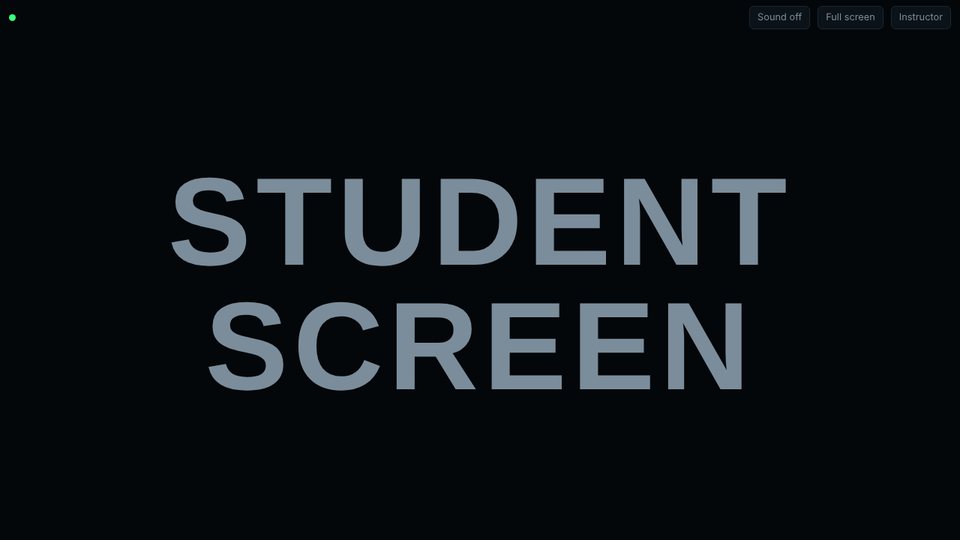
Open the simulator and press Open student screen for HDMI.Drag the new window onto the students' display and press Full screen. It should read STUDENT SCREEN.
Pick a scenario from the list at the top of the left column.
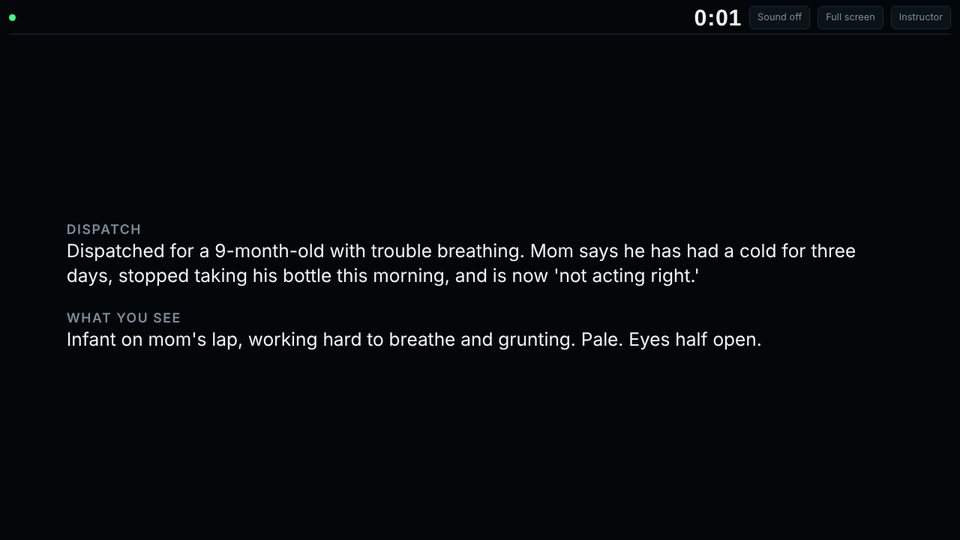
Press Start scenario.The students now see the dispatch information and what they would see walking up. Nothing else.
Press what the team does.When they check a pulse, attach the monitor or give a drug, press that button. Assessment results appear on their screen as they earn them.
Change the patient in the right column to respond to their treatment.
Press End and review to put the debrief on the student screen, then Reset for the next team.
Two screens
Setting up the student screen with an HDMI cable
The goal is two different pictures from one computer: the console on your screen, and the student monitor on the TV or projector. The students must not be able to see the console, because it shows the true rhythm, the expected actions and the PALS doses.
Plug in the HDMI cable.One end goes into the computer (or its adapter), the other into the TV or projector. Turn the display on and switch it to that HDMI input with its remote or Input button.
Set the computer to Extend, not Duplicate.Extend treats the TV as extra desktop space next to your own screen. On Duplicate (also called Mirror), the TV copies your screen and the students see your console.
WindowsHold the Windows key and press P. Choose Extend.
MacOpen System Settings, then Displays. Set the external display to Extended display, with mirroring off.
Open the simulator on your own screen and press Open student screen for HDMI at the top. The student screen opens in its own window, and the button changes to Student screen is open.
Move that window onto the TV.Drag it by its title bar off the edge of your screen toward the TV. On Windows you can instead click the window and press Windows + Shift + → (or ←).
Press Full screen in the top corner of the student window. Press Esc later to leave full screen.
Check it.The TV should show the words STUDENT SCREEN in large letters and nothing else. That is correct: it stays blank until you start the scenario.
Run everything from the console on your own screen.The student window follows every change you make.
Turning on the monitor beep
Press Sound off on the student window to switch it to Sound on. Once the ECG is showing, the monitor beeps with each beat. The sound plays through whichever speaker the computer is using, so pick the TV as the audio output if you want it to come from there.
If the student window will not open
Your browser is blocking pop-up windows. Either allow pop-ups for this site and press the button again, or do it by hand: open the simulator a second time in a new window of the same browser, drag that window to the TV, press Student monitor, then Full screen. It links to your console by itself.
Both windows must be on the same computer, in the same browser
The console shows a tag reading This browser only. It means the student screen has to be another window of the same browser on the same computer. A student screen opened on a different computer, tablet or phone will not follow along.
Finding your way around
The instructor console
The console is a top bar and three columns. You work left to right: watch how the team is doing, press what they do, then change the patient.
1234
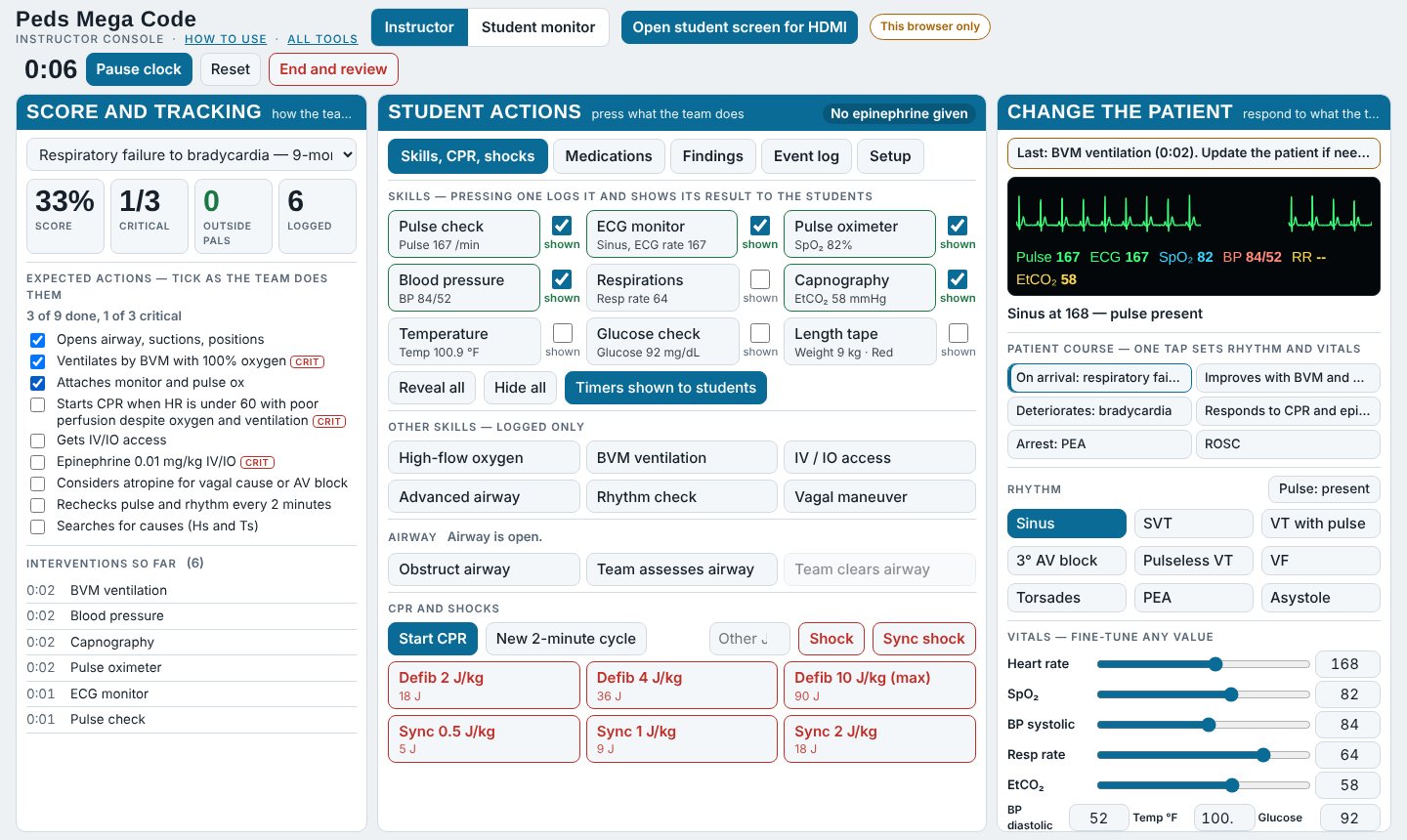
The console about six seconds into the respiratory failure scenario. The team has checked a pulse, attached the monitor, pulse oximeter, capnography and blood pressure cuff, and started bagging.
1Top bar
Switches between the instructor and student views, opens the student window, and holds the scenario clock with Start scenario, Reset and End and review.
2Score and tracking (left)
Choose the scenario here. Below it are four running numbers (score, critical actions done, actions outside PALS, and items logged), the checklist of expected actions, and a list of every intervention so far with its clock time.
3Student actions (middle)
Everything the team can do, on five tabs: Skills, CPR, shocks, Medications, Findings, Event log and Setup. The header also tracks epinephrine: how many doses and how long since the last one.
4Change the patient (right)
The patient as they really are. A small preview shows the true rhythm and vitals, including ones the students have not asked for yet. Below it are the scripted patient course, the rhythm buttons, a pulse present/absent switch and a slider for each vital sign.
Step by step
Running a scenario
Choose and prepare
Pick a scenario from the list in the left column. There are 13 scripted cases and a free-play option:
Group
Scenarios
Respiratory
Respiratory failure to bradycardia (9 months), opioid ingestion (2 years), severe asthma to respiratory failure (10 years), full respiratory arrest (3 years)
Shock
Septic shock (3 years), anaphylaxis (6 years)
Rhythm with a pulse
SVT, stable then unstable (4 months), wide-complex tachycardia with a pulse (12 years)
Cardiac arrest
Witnessed collapse in VF (8 years), submersion arrest in asystole (5 years), infant found in crib (3 months), possible carbon monoxide arrest (7 years)
Neurologic
Status epilepticus (2 years)
Open
Free play: no script, you set everything yourself
The Setup tab shows the story and lets you change the patient's age and weight (in kilograms or pounds), the dispatch information, and what the students see walking up. Changing the weight recalculates every drug dose and shock energy. Do this before you press Start.
Start
Press Start scenario. The clock starts, and the student screen changes from blank to the dispatch information and a short description of what anyone would see walking in. No vital signs are shown yet. The clock also starts by itself the first time you press a skill, a drug, CPR or a shock.
Before you startBlank except for the words STUDENT SCREEN, so you can confirm the right window is on the TV.
After StartDispatch information and what they see. Nothing else until they assess.
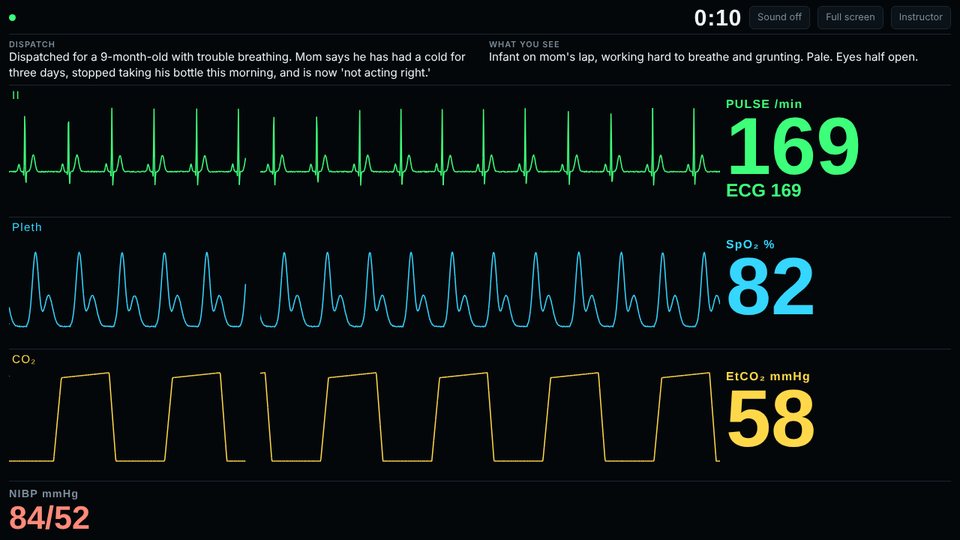
As they assessEach trace and number appears when the team performs that check.
Press what the team does
Stay on the Skills, CPR, shocks tab for most of the scenario.
Assessment skills (the nine boxes at the top: pulse check, ECG monitor, pulse oximeter, blood pressure, respirations, capnography, temperature, glucose check, length tape). Pressing one logs it and shows its result on the student screen. The small print on each button tells you the current value. The shown tick box beside each lets you show or hide a result without logging the skill.
Reveal all / Hide all show or hide every vital sign at once. Timers shown to students controls whether the students can see the scenario clock and the CPR timer.
Other skills (high-flow oxygen, BVM ventilation, IV/IO access, advanced airway, rhythm check, vagal maneuver) are logged with the time but show nothing on the student screen.
CPR.Start CPR begins a two-minute countdown, which the students see as well if timers are shown. When it runs out, both screens say a rhythm check is due. New 2-minute cycle restarts the countdown and logs a rhythm check.
Shocks. The red buttons are already worked out for this patient's weight: defibrillation at 2, 4 and 10 J/kg, and synchronized cardioversion at 0.5, 1 and 2 J/kg. If the team chooses a different energy, type the joules in the Other J box and press Shock or Sync shock. The student screen flashes when a shock is delivered.
Medications
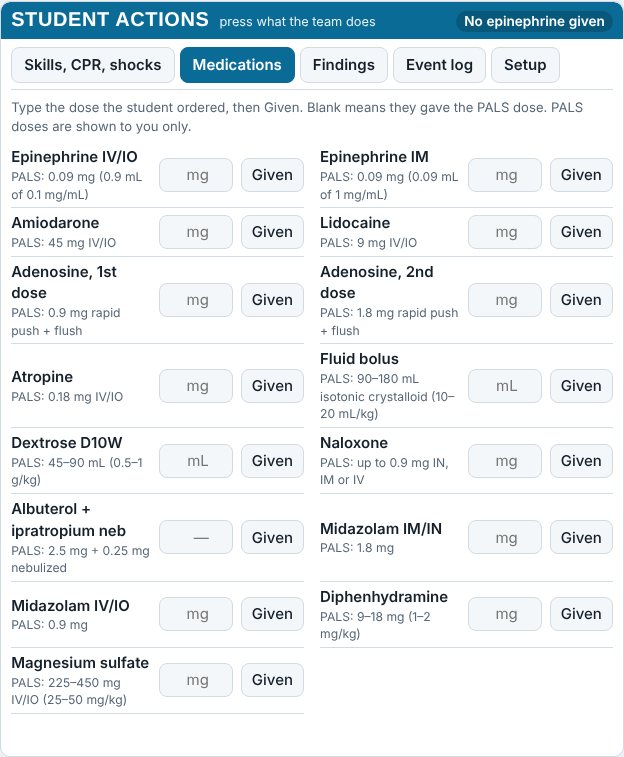
Open the Medications tab when the team orders a drug. Each row shows the correct PALS dose for this patient's weight. Only you can see it.
Make the student say the dose. Type the number they ordered into the box, then press Given.
If you leave the box empty and press Given, it is recorded as the correct PALS dose.
A dose more than about 10% outside the PALS dose is flagged as outside PALS.
Each IV/IO epinephrine dose is counted in the header, with the time since the last one, so you can see when the 3 to 5 minute window opens.
The Medications tab for a 9 kg infant.
Tell them what they find
The Findings tab sends a line of text to the student screen under the heading Assessment. Use it for things a monitor cannot show: skin, lung sounds, pupils, chest rise. Tap one of the ready-made findings for the scenario, or type your own and press Show on student screen. Clear removes it.
Change the patient
When the team treats, respond in the right column. A cue at the top reminds you of the last thing they did.
Patient course is the quickest way. Each button is a scripted turn in the case, such as "Improves with BVM and oxygen" or "Deteriorates: bradycardia". One tap sets the rhythm, the vital signs and what the students see. Hover over a button to read when to use it.
Rhythm buttons change the ECG on their own: sinus, SVT, VT with a pulse, third-degree AV block, pulseless VT, VF, torsades, PEA and asystole.
Pulse: present / absent sets whether there is a pulse. Students only learn this by checking for one.
Vitals sliders fine-tune any single value.
How the numbers behave
The oxygen saturation drifts toward the value you set over several seconds, the way a real pulse oximeter does. With no pulse, the students' pulse reads 0 and the capnography stays in the low teens.
The airway obstruction
Under Airway on the skills tab, Obstruct airway blocks the patient's airway without telling the students. Oxygen, bagging and airway devices then have no effect, and the patient arrests after five minutes. To fix it, the team has to check the airway (press Team assesses airway, which tells them what they find) and then clear it (Team clears airway). A countdown beside the heading shows you how long they have left.
Keep score as you go
In the left column, tick each expected action when the team does it. Actions marked CRIT are critical and count double toward the score. Anything the simulator recognizes as outside PALS, such as a wrong dose, a shock on a non-shockable rhythm or a long pause without compressions, is listed in red as it happens. The Event log tab keeps the full timeline, where you can add your own notes and copy the log to paste elsewhere.
After the call
Review and reset
Press End and review when the scenario is over. The clock stops and a review replaces the monitor on the student screen, so the whole team can debrief from it.
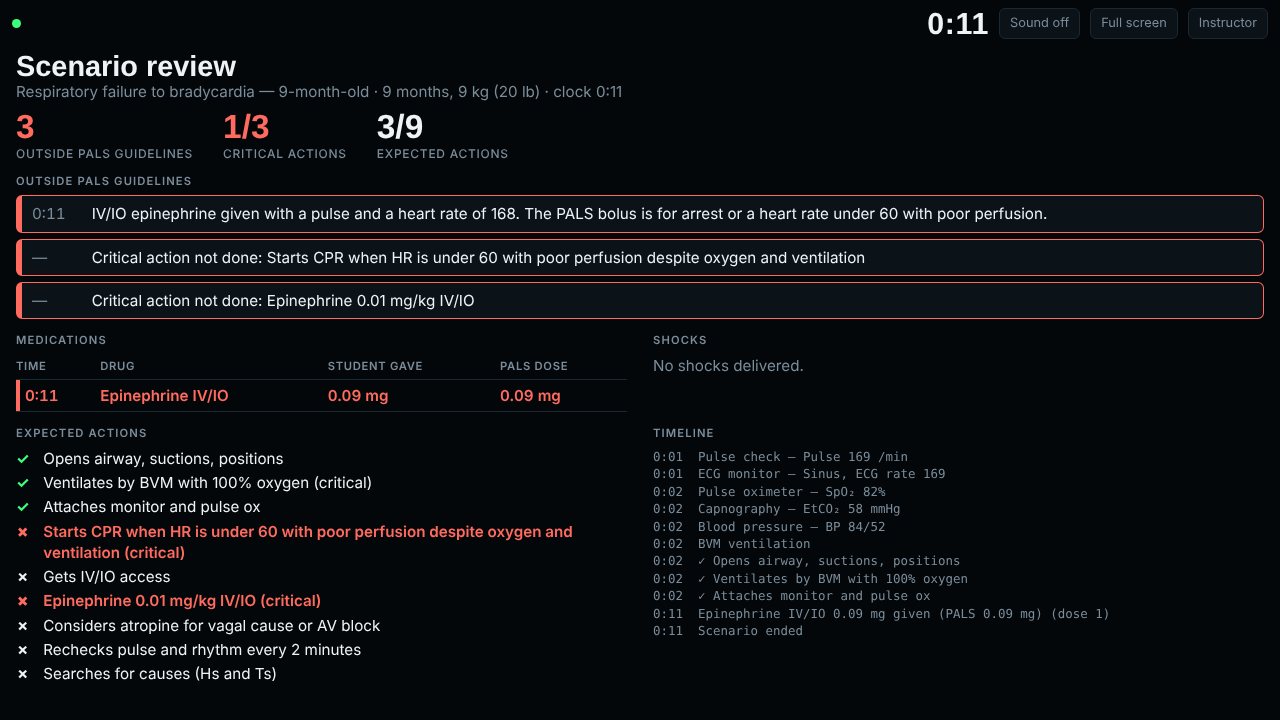
The review as the students see it. This short example flags epinephrine given to a patient with a pulse and a heart rate of 168.
Outside PALS guidelines lists each flagged item with its clock time, plus any critical action that was not done.
Medications and shocks show what was given beside the PALS dose or energy.
Expected actions shows what was ticked and what was missed. You can still tick actions during the debrief and the review updates.
Timeline is the event log.
On your console the same review is on a Review tab. Close review and return to the scenario puts the monitor back if you want to keep going.
Reset for the next team
Reset blanks the student screen back to STUDENT SCREEN, clears the log, the ticks and the score, and returns the patient to the way you had it set when you pressed Start. Any age, weight or dispatch changes you made in Setup are kept, so you can run the same case again straight away. To go back to the scenario exactly as scripted, use Restart this scenario from its scripted start on the Setup tab, or pick a different scenario from the list.
When something is off
Troubleshooting
The TV shows my console, not the student screen
The computer is set to Duplicate (Mirror). Switch it to Extend: on Windows press Windows + P and choose Extend; on a Mac turn mirroring off in Displays. Then drag the student window onto the TV.
The TV says "No signal" or stays black
Check that the TV is on the same HDMI input the cable is plugged into, and that both ends of the cable are seated. If you are using an adapter, unplug it and plug it back in.
Nothing happens when I press "Open student screen for HDMI"
The browser blocked the pop-up window. Look for a blocked pop-up icon in the address bar and allow pop-ups for this site, or open the simulator in a second window of the same browser and press Student monitor there.
The student screen only says STUDENT SCREEN
That is what it shows before the scenario starts. Press Start scenario. The console shows a "Not started: student screen is blank" tag until you do.
The student screen says "Not linked" or does not follow the console
The two windows are not in the same browser on the same computer. Close the student window and open it again with Open student screen for HDMI. If you refreshed the console page, change something on the console and the student window will catch up.
I cannot find the student window
It may be behind another window or on the other display. Press Student screen is open on the console to bring it to the front, then drag it to the TV.
There is no beeping
Sound is off until you press Sound off on the student window to turn it on. The beep only plays once the ECG is showing, and it comes from whichever speaker the computer is set to use.
The students can see the clock and I do not want them to
Press Timers shown to students on the skills tab to hide the scenario clock and CPR timer from them. You still see both.
I closed or refreshed the console in the middle of a scenario
The student window closes with it, and the simulator goes back to the first scenario in the list. Open the simulator again, reopen the student window and choose your scenario. Choosing a scenario clears the log, so if you need the notes from the interrupted run, open the Event log tab and press Copy log first.
For training only
The doses and energy settings in the simulator follow AHA PALS. Check them against your own current protocols before teaching from it. This is a classroom aid, not medical direction, and it is not for use on a real patient.
 1
2
3
4
1
2
3
4